Packlee Vocabulary Builder iOS Widget & Quick Shortcut — Add a New Card With One Tap
Packlee Vocabulary Builder iOS Widget & Quick Shortcut — Add a New Card With One Tap
One of the most common situations in vocabulary learning: you come across a word you want to learn, but by the time you open the app, navigate, and add it — the momentum is gone. The Packlee Vocabulary Builder iOS widget and long press shortcut remove that friction: all three options take you directly to the card creation screen in one step.
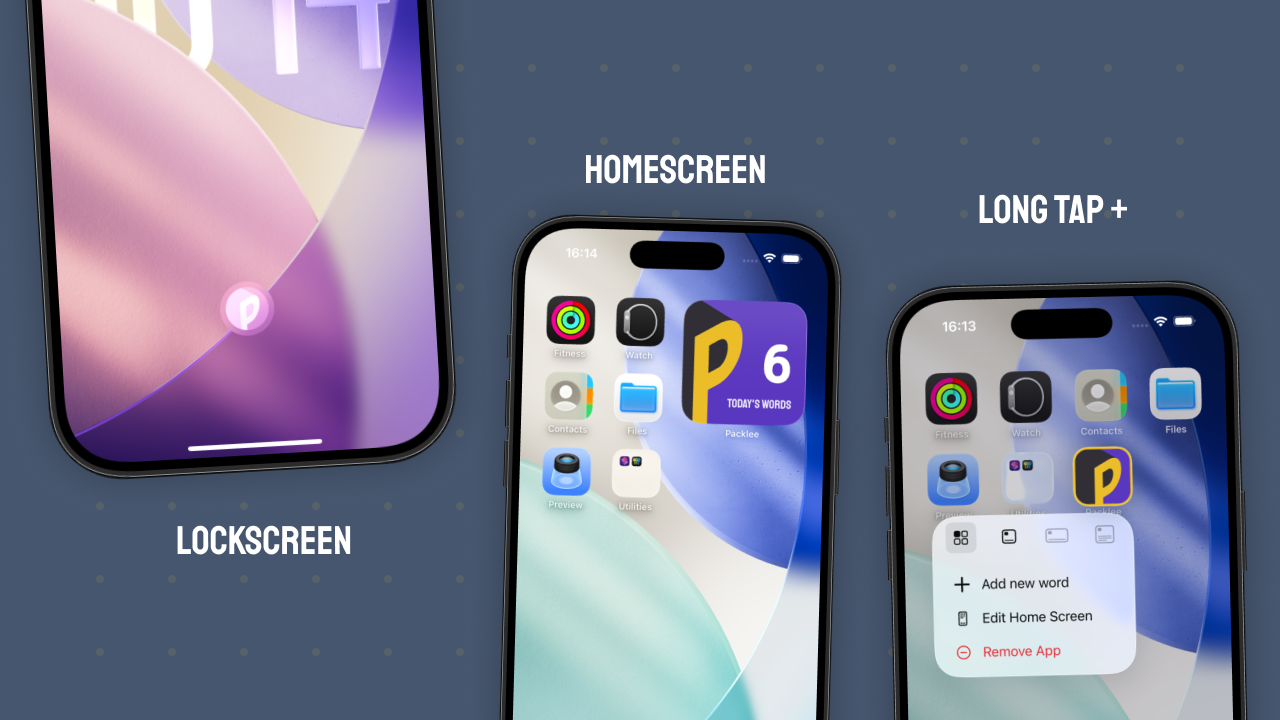
The Three Quick Access Options
Lock Screen Widget
Since iOS 16, widgets can be placed directly on the lock screen. The Packlee Vocabulary Builder lock screen widget is a small circular element — with the Packlee icon. One tap takes you straight to the new card screen, without having to unlock your phone and find the app first.
Most useful when you pick up your phone and something comes to mind — a word you heard, read, or simply want to learn.
Home Screen Small Widget
The home screen widget leads to the same place: tap → add a new card to your active deck. The difference is that it also shows one extra piece of information: how many words you’ve added today. Large number, white text, purple background.
So it serves a dual purpose: at a glance you can see where you stand for the day, and if you want to add more, a single tap is all it takes.
Long Press Shortcut
If you don’t want to fill your home screen with a widget, the long press shortcut gives you the same access without one. Press and hold the Packlee Vocabulary Builder icon on your home screen — a quick menu appears, letting you jump directly to the new card screen.
No separate setup needed, available by default.
How to Set Them Up
Home Screen Widget
- Long press an empty area on your home screen until the icons start wiggling
- Tap the ”+” button in the top left
- Find Packlee Vocabulary Builder in the list
- Choose the small widget and drag it into place
Lock Screen Widget
- Long press the lock screen (while unlocked)
- Tap “Customize”, then “Lock Screen”
- Tap the widget area
- Find Packlee Vocabulary Builder and add it
Summary
All three — lock screen widget, home screen widget, long press shortcut — lead to the same place: the new card screen for your active deck. The home screen widget also shows today’s added word count, making it both a reminder and a quick entry point.