How to Use the Packlee Menubar App — Complete Guide
How to Use the Packlee Menubar App — Complete Guide
The Packlee Menubar app is completely free — and if you spend a lot of time on your Mac, it’s one of the most useful vocabulary builders you can download. In this guide we’ll walk through how to set it up and how to integrate it into your daily work most effectively.
Why a Separate Menubar App?
Most vocabulary apps are mobile-only. That makes sense — people learn on the go, and a phone is always at hand. But there’s one situation mobile apps handle poorly: the moment when you’re reading something on your Mac and come across an unfamiliar word.
What usually happens:
- You open a dictionary or translator, look up the word
- Maybe you jot it down somewhere — or don’t
- Two days later you’ve completely forgotten it
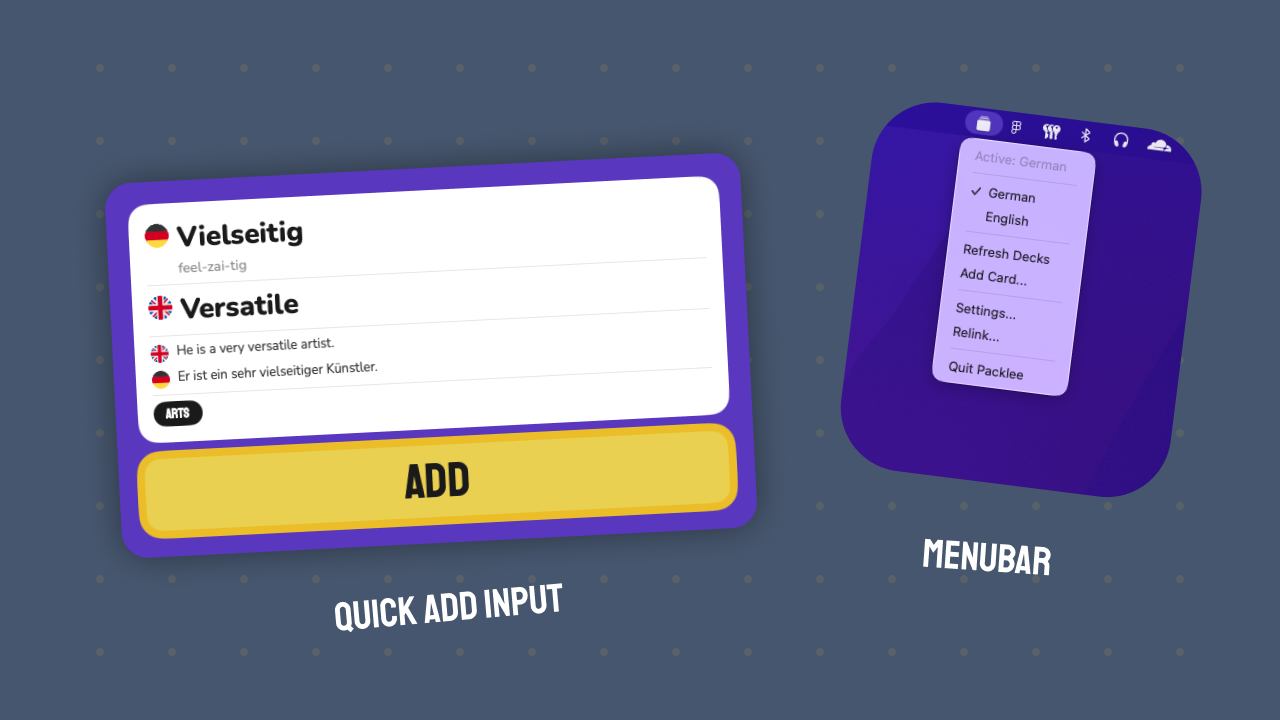
The Packlee Menubar app solves this problem. With a global keyboard shortcut, you can open Packlee Vocabulary Builder from any app and instantly add the word or phrase — without interrupting your work.
Installation and First Setup
Completely free to download. No trial period, no subscription — free forever.
First launch requires two things — but both are done in a few minutes.
1. Connect to Your Profile
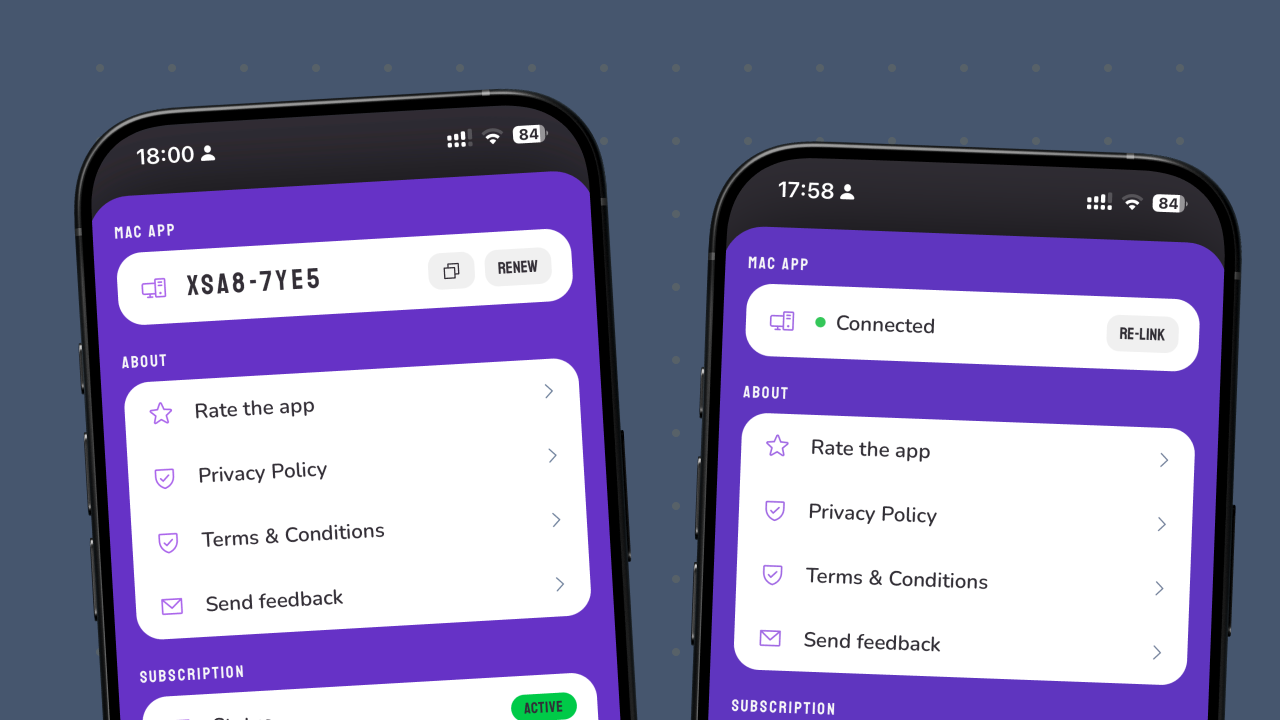
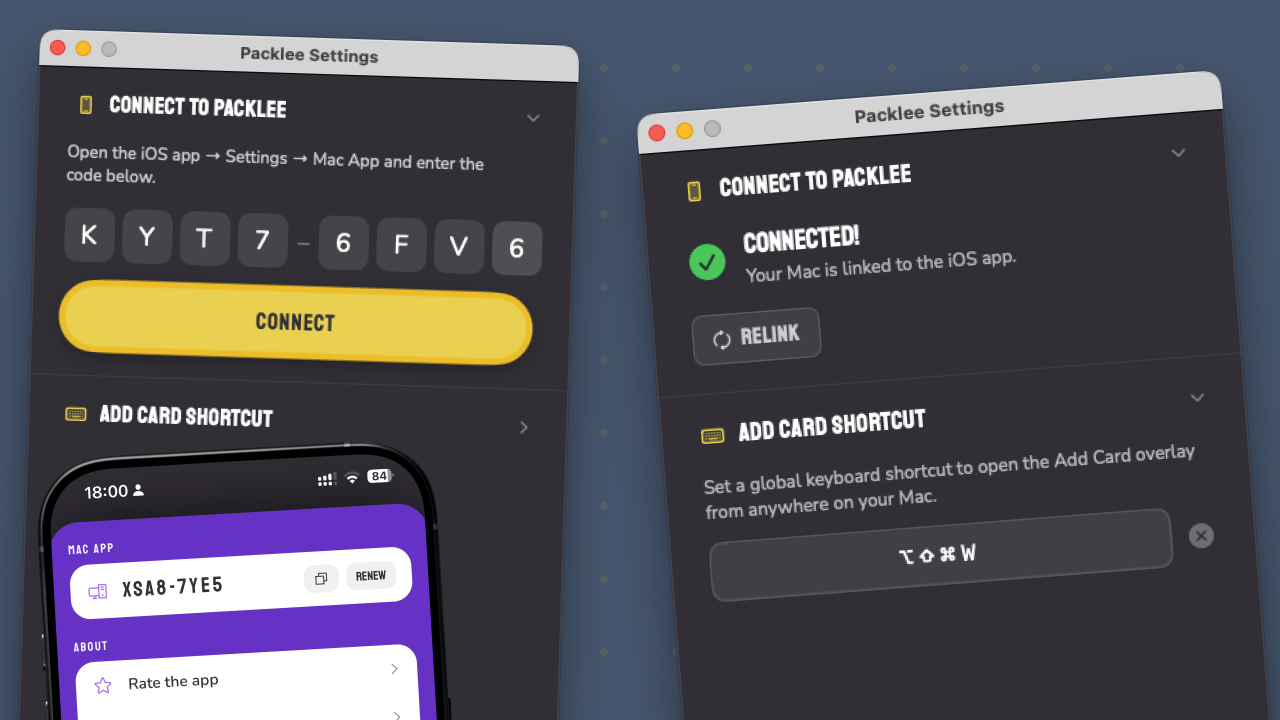
The Packlee Menubar app connects to the mobile app. You need an active Packlee Vocabulary Builder account on iPhone, then generate a unique code from the Settings menu. Enter that code in the Menubar app — and you’re done, the two devices are linked. From that point on, words and progress sync automatically.
2. Set Your Keyboard Shortcut
Choose a combination you can trigger comfortably at any time — this will be your Packlee Vocabulary Builder hotkey. It works from any app, so whether you’re in a browser, document, or PDF, a single shortcut opens the word-adding interface.
That’s it. No other configuration needed, no separate registration — your account is already set from iPhone.
Adding Your First Word From the Mac
This is the flow the entire Menubar app is built around. Brief, fast, non-disruptive.
- Copy the word or phrase you want to learn
- Trigger the Packlee Vocabulary Builder keyboard shortcut
- Paste the content into the field that appears and press Enter
- Done — your first word is saved
The app suggests a translation which you can accept or edit. The whole thing takes 10 seconds — then you continue where you left off.

Menubar App vs. Mobile: What’s the Difference?
The Packlee Menubar app and the iPhone app share the same word list and progress — but they’re best used in different situations.
| Menubar app | iPhone app | |
|---|---|---|
| Main strength | Adding words while working | Practicing words on the go |
| When to use | Reading, research, work | On the bus, waiting in line, free moments |
| Keyboard shortcut | Yes, global shortcut | Not relevant |
| Offline? | Yes | Yes |
| Price | Free | 7-day trial, then subscription |
The workflow that works best for most users: collect words and phrases in the Menubar app (while working), and practice on mobile (in free moments). The two platforms complement each other rather than competing.
Word Lists and Categories
In Packlee Vocabulary Builder you can create as many word lists as you want. It’s worth separating by topic:
- A professional list: if you’re collecting words for a specific field (tech, marketing, law, medicine)
- A travel list: everyday expressions in your target language
- An “I came across it” list: words you stumbled upon by chance that caught your interest
A good vocabulary builder isn’t the one with the most words — it’s the one with your words. The ones you actually need.
Fitting It Into Your Workflow: Two Methods
Method 1: “Found a Word” Trigger
The simplest approach. You’re reading something on your Mac, you come across a word you don’t know → press the shortcut, add it, continue. Nothing else required.
Method 2: Morning 5-Minute Session
Open Packlee Vocabulary Builder and review the words scheduled for review that day. Ideally first thing in the morning, before diving into work. 5 minutes — and you’ve done your daily session.
Combining both is ideal: review yesterday’s words in the morning, collect new ones throughout the day.
Summary
The Packlee Menubar app is a free, practical tool for anyone who spends a lot of time on a Mac and wants to collect and learn words and phrases along the way. The global keyboard shortcut, spaced repetition, and automatic sync work together to make it effective — without requiring any changes to your existing workflow.
If you haven’t tried it yet, download it — it’s free and takes 2 minutes to set up.